
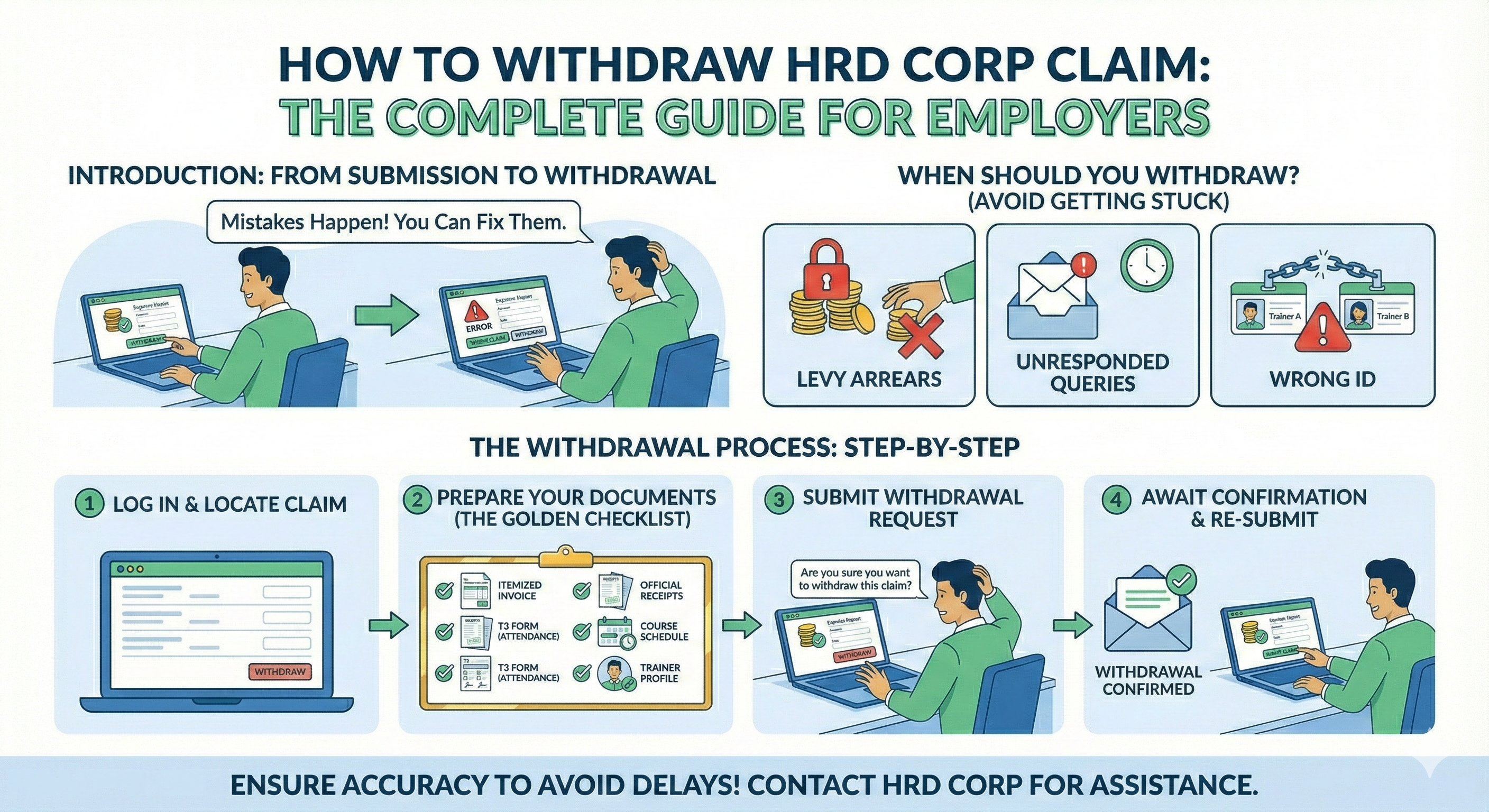
Navigating the HRD Corp (formerly HRDF) e-TRiS system can sometimes feel like a maze. One of the most common points of confusion for employers and training providers is the term “Withdraw.”
Are you trying to “cash out” your levy (get reimbursed for training)? Or are you trying to cancel a submitted claim to correct a mistake?
In the HRD Corp ecosystem, these are two very different actions. This guide will walk you through both processes so you can secure your funds or fix your applications without a headache.
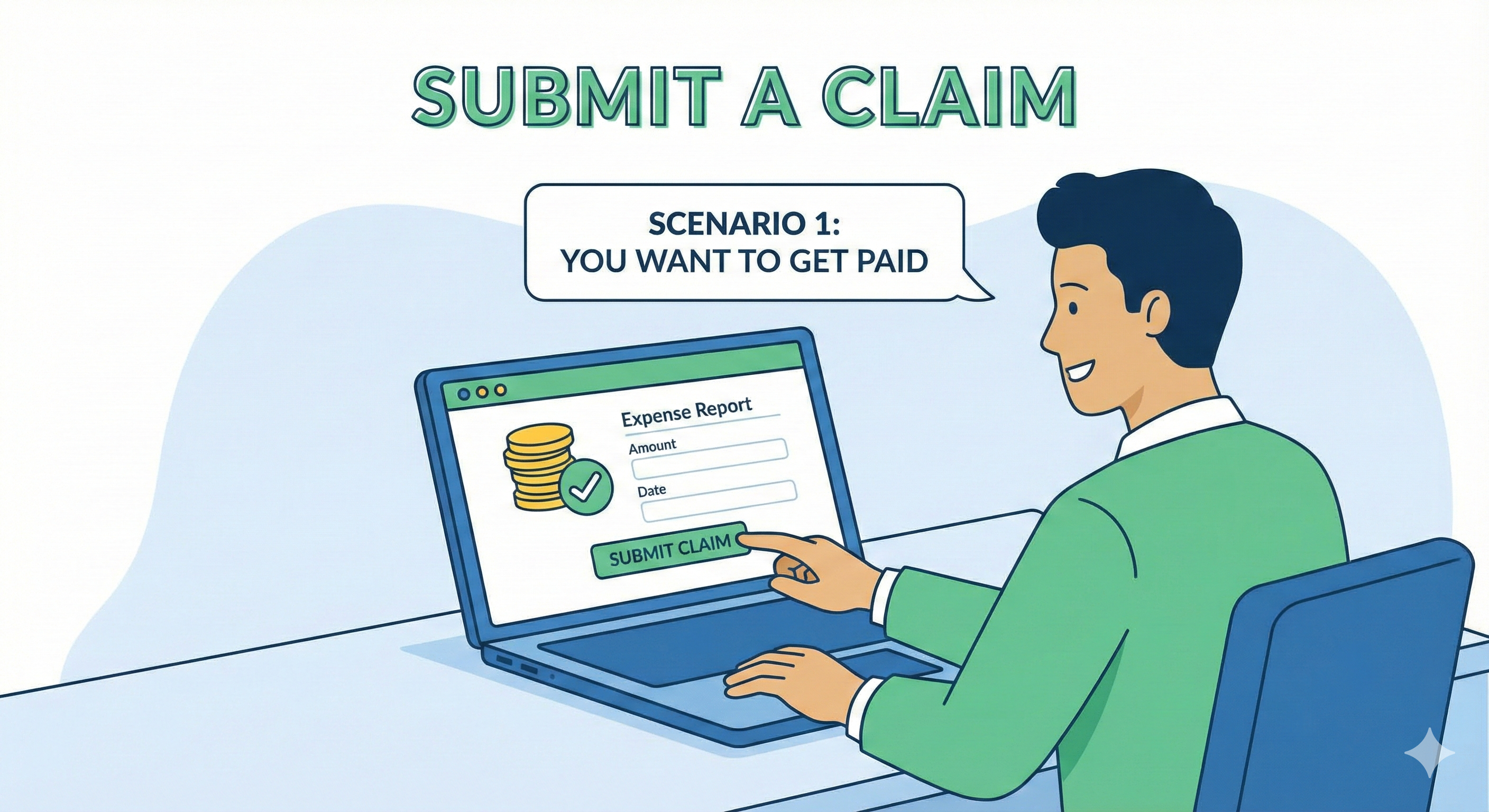 Scenario 1: You Want to Get Paid (Submit a Claim)
If you have completed a training and want to withdraw money from your levy to cover the costs, the official term for this is “Claim Submission.”
You generally have six (6) months from the date the training ends to submit your claim. If you miss this window, your claim will be automatically rejected.
Step-by-Step: How to Submit a Claim for Reimbursement
1. Login to e-TRiS: Access your account at the HRD Corp official portal.
2. Navigate to Claims: Click on Applications > Claim.
3. Initiate Submission: Select “Submit Claim with Grants.” This connects your claim to the specific training grant you previously applied for and got approved.
4. Verify Information: The system will pre-fill most details from your Grant application. Verify the training dates, provider details, and course title.
5. Update Attendance:
– Crucial Step: You must input the daily attendance.
– Upload the attendance list or key it in manually.
– Note: Trainees must have attended at least 75% of the training to be eligible for the claim.
6. Add Financial Details: Enter the actual costs incurred (Course Fees, Allowances, Transport). Upload the required supporting documents (see checklist below).
7. Submit: Click “Save & Submit.”
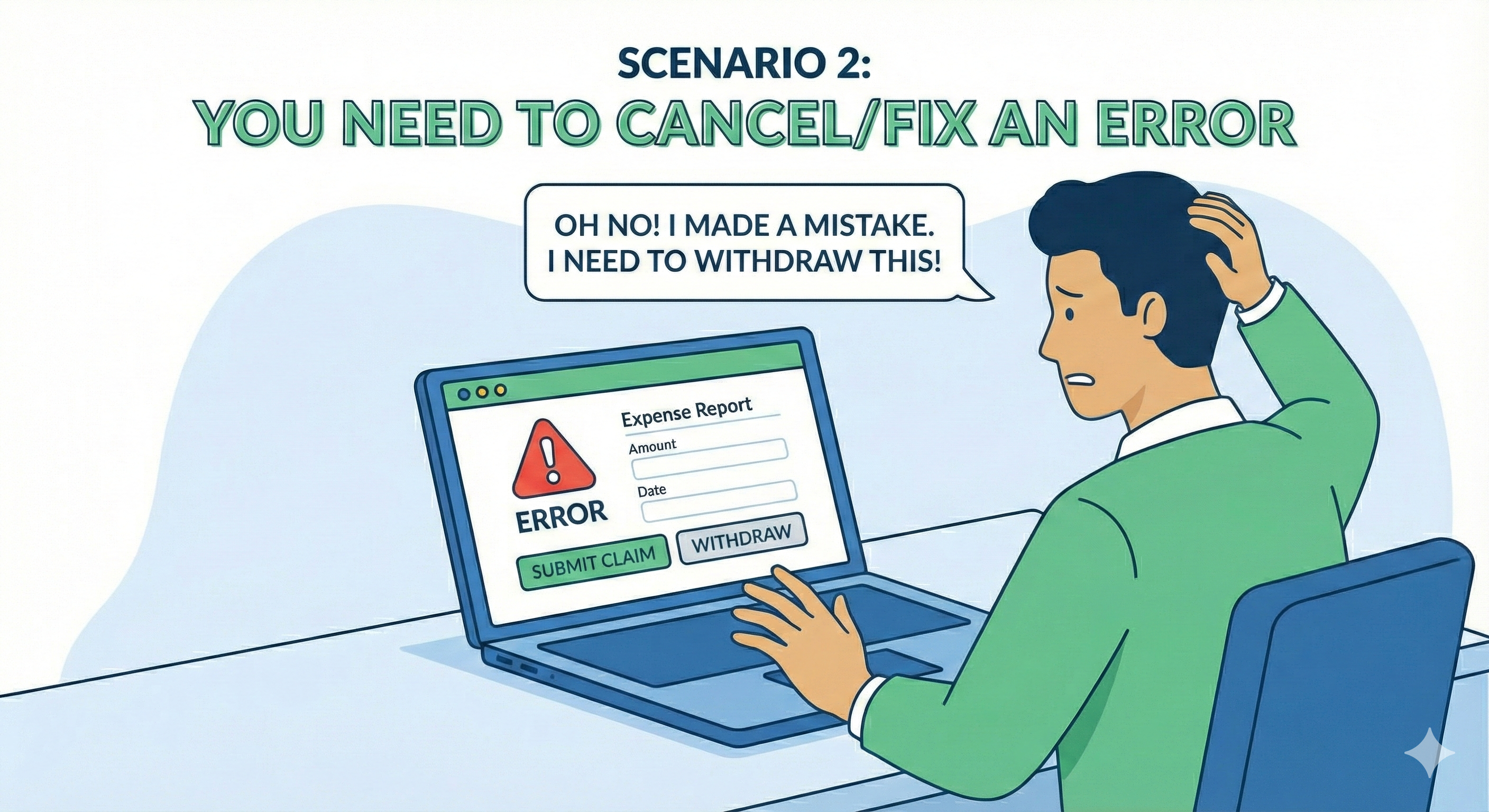
Scenario 2: You Need to Cancel/Fix an Error (The “Withdraw” Function)
If you made a mistake on a submitted claim (e.g., wrong amount, wrong file attached) and need to pull it back to edit it, this is where the official “Withdrawal” function comes in.
The objective of a withdrawal is to “pull back” a submitted application so you can modify it.
Step-by-Step: How to Use the “Withdraw” Function
1. Login to e-TRiS: Log in to your employer account.
2.Go to Applications: Click Applications > Claim.
3. Find Your Claim: Select “Search/Withdraw Claims.”
4. Select the Claim: Find the specific claim reference number you want to pull back. Click Enquiry in the Action column.
5. Execute Withdrawal:
– Click Next until you reach the Employer Declaration page.
– You will see a “Withdraw” button (usually near the bottom).
– Enter Remarks: You must provide a reason for the withdrawal (e.g., “Incorrect invoice attached,” “Amending claim amount”).
– Click Withdraw.
6. Next Steps: Once you click withdraw, the claim is removed from the “Submitted” queue. You can now make the necessary corrections and re-submit it.
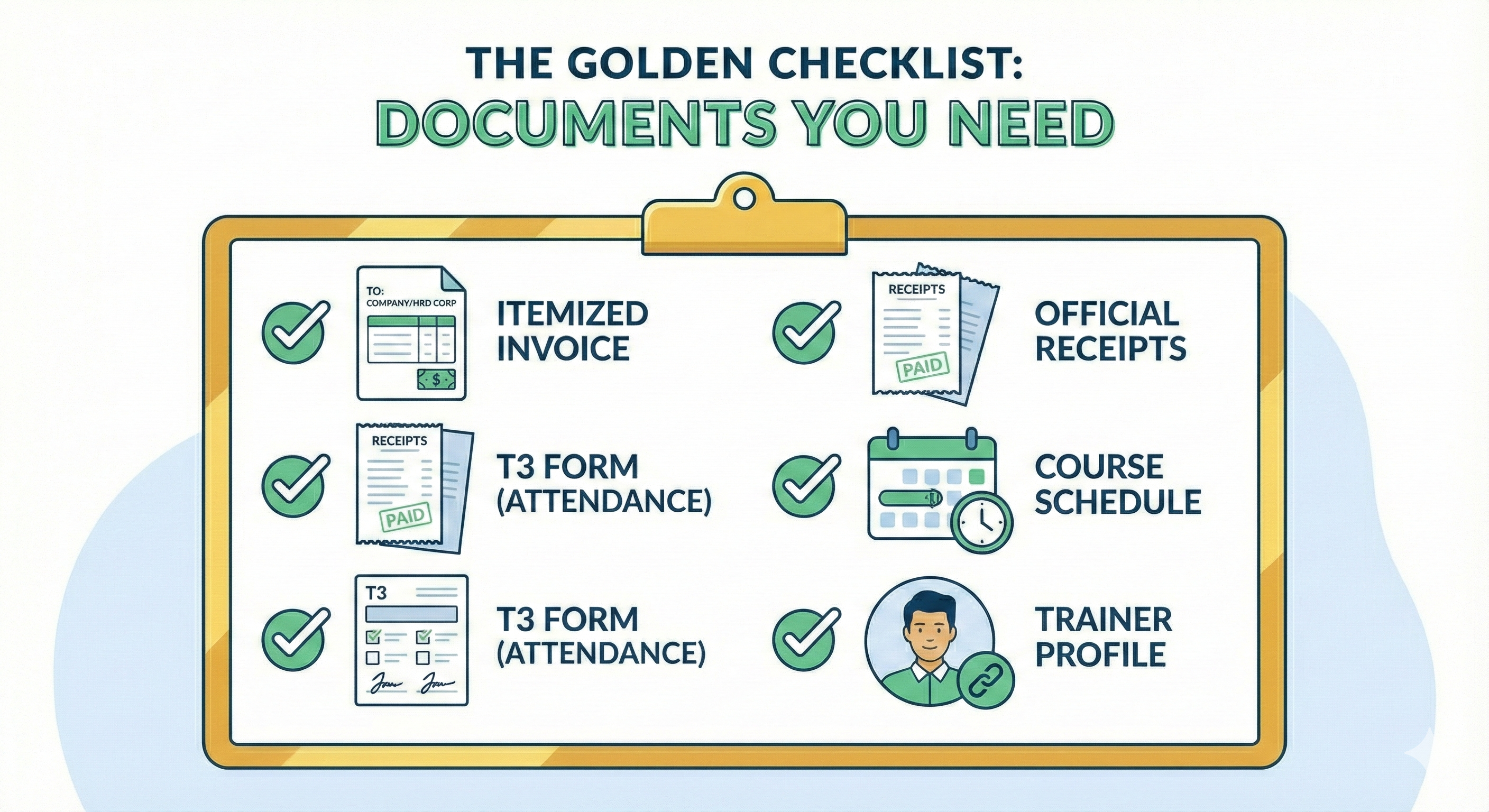
The Golden Checklist: Documents You Need
Whether you are submitting a fresh claim or fixing a withdrawn one, having the right documents is the #1 way to speed up approval (usually within 5-7 working days).
Ensure you have clear PDF scans of the following:
-
Itemized Invoice: Must be addressed to your company or HRD Corp (depending on the scheme).
-
Official Receipts: Proof of payment for all claimed items.
-
T3 Form (Attendance): Signed by the training provider and trainees.
-
Course Schedule: The actual itinerary of the training conducted.
-
Trainer Profile: If not already linked in the system.
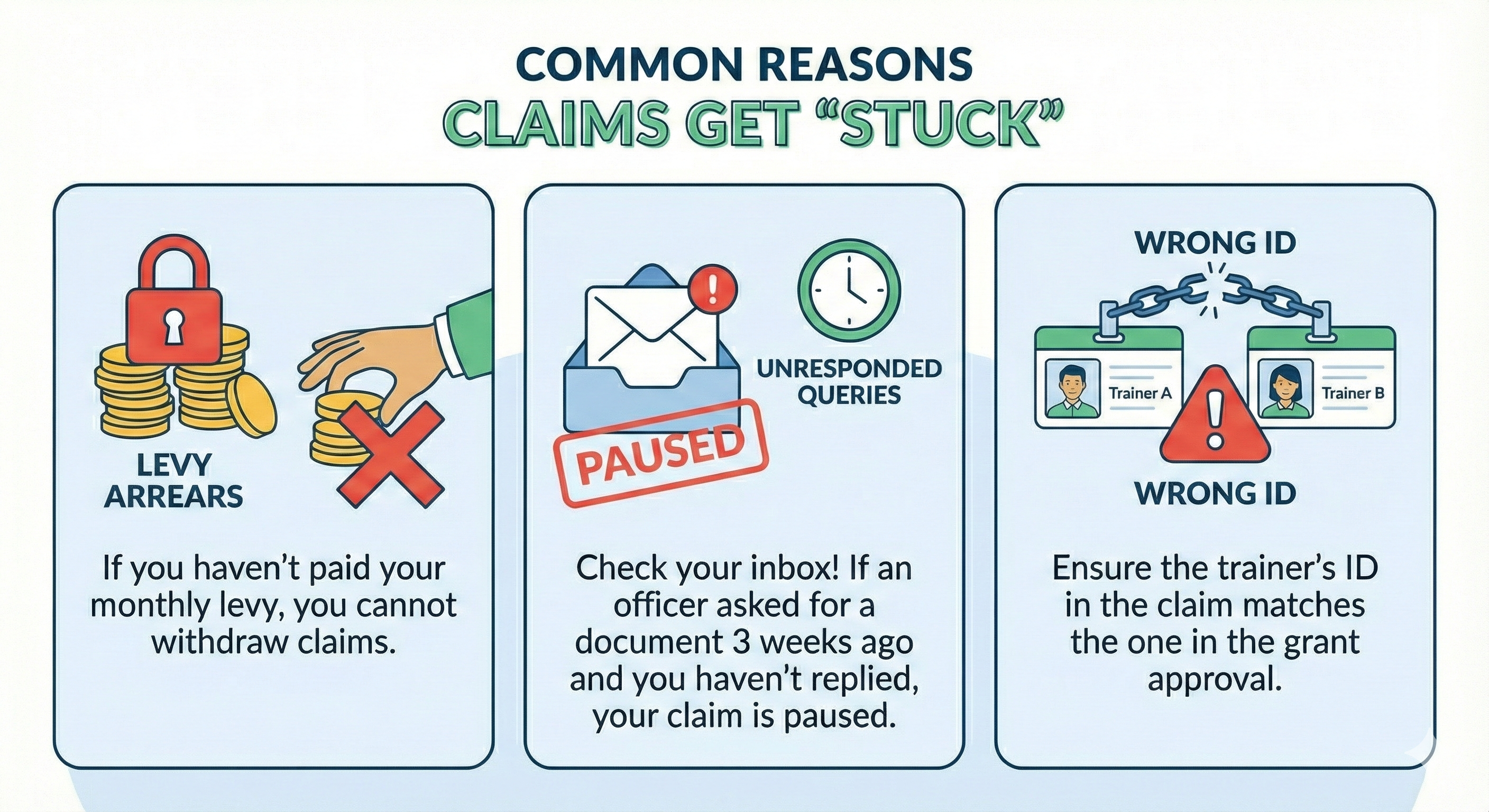
Common Reasons Claims Get “Stuck”
If you feel like you can’t withdraw your money, check if you’ve fallen into one of these traps:
1. Levy Arrears: If you haven’t paid your monthly levy, you cannot withdraw claims.
2. Unresponded Queries: Check your inbox! If an officer asked for a document 3 weeks ago and you haven’t replied, your claim is paused.
3. Wrong ID: Ensure the trainer’s ID in the claim matches the one in the grant approval.
Conclusion
-
Use “Submit Claim” when you want to get reimbursed.
-
Use “Withdraw” when you need to cancel an application to fix a mistake.
Need help with your HRD Corp training documentation? Keeping track of T3 forms, grants, and claim deadlines can be overwhelming. If you need assistance structuring your training proposals to ensure they are “claim-ready” from day one, feel free to reach out!
Sources:
1. https://supportcentre.hrdcorp.gov.my/portal/en/kb/articles/claim-withdrawal
2. https://supportcentre.hrdcorp.gov.my/portal/en/kb/articles/grant-cancellation